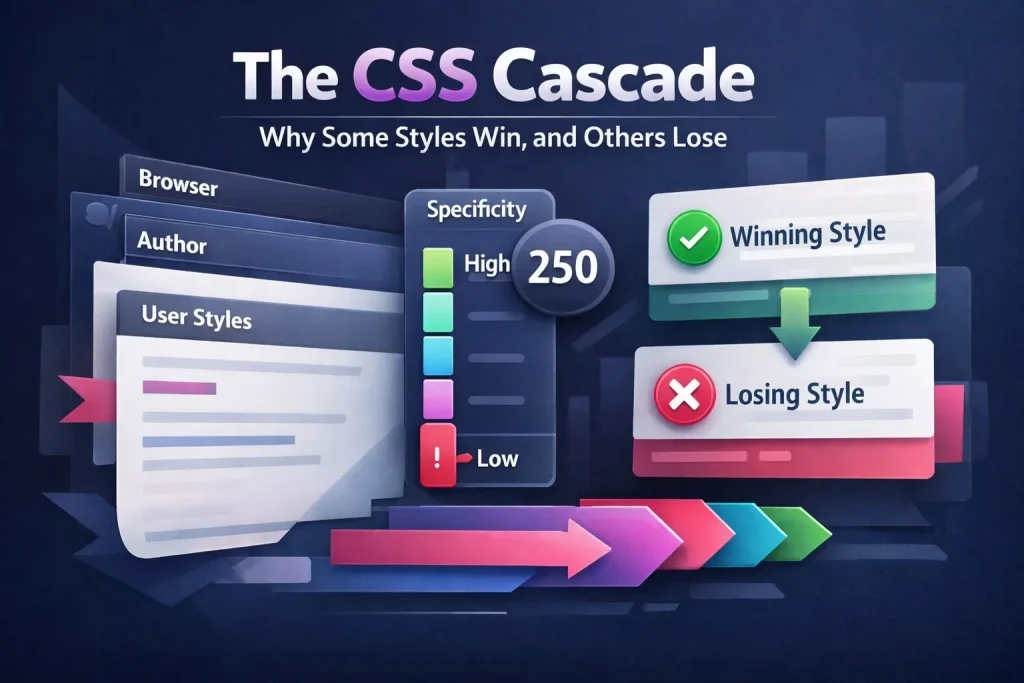
The CSS Cascade
Learn how the CSS cascade works: how origin, specificity, and source order decide which styles apply, how to read specificity scores, when to use !important, and how to predict which CSS rule wins any conflict.
Here’s a moment you’ve probably already hit, or you will soon.
You write a CSS rule, hit save, reload the browser, and the style just doesn’t show up. Nothing changes. So you double-check the selector, check for typos, maybe even add color: red just to confirm your CSS is loading at all, and it still doesn’t work.
You open DevTools, and there’s your rule, crossed out with a strikethrough line through it. Overridden. Something else won.
That moment is the cascade doing exactly what it’s supposed to do. The problem isn’t that CSS is broken. The problem is that until you understand how the cascade actually works, you’re basically guessing.
The “C” in CSS stands for Cascading, and it’s not just a fancy word. It describes a real algorithm the browser runs every time it needs to figure out which style applies to an element. We briefly touched on this idea in our Introduction to CSS, and we mentioned specificity as a factor back in the Inline, Internal, and External CSS lesson. Now it’s time to dig into the full picture.
By the end of this, you’ll be able to look at two conflicting CSS rules and tell, with confidence, which one wins and why.
01What the CSS Cascade Actually Is
When a browser renders a page, it collects every CSS rule that could possibly apply to every element on that page. And for any given element, there are usually multiple rules targeting the same property.
For example, a <p> tag on your page might have its font size set by your browser’s defaults, your main stylesheet, and maybe a utility class all at the same time. They can’t all win. The browser needs to pick one.
That’s what the cascade is: a defined set of steps for resolving conflicts between CSS rules. It’s not random. It’s not a bug. It follows predictable logic, and once you know that logic, you can work with it instead of fighting it.
The browser goes through these questions in order:
- Where does this style come from? (origin)
- Does one of these use
!important? - Which selector is more specific? (specificity)
- If everything else is equal, which one came last? (source order)
Let’s go through each one properly, with real examples.
02The First Question: Where Did This Style Come From?
Before the browser even looks at your selectors, it asks: what’s the origin of this style? Because not all CSS has the same authority.
There are three main sources CSS can come from:
Origin Priority: Weakest → Strongest
Browser Default Styles
Built-in stylesheet every browser ships with. Gives headings their size, links their color, etc.
Lowest Priority
Inline Styles
Written directly on the element using the style="" attribute.
Strongest
The User Agent Stylesheet: Your Browser’s Built-in CSS
Open a brand new HTML file with no CSS at all. Add an <h1> tag. It’s still big and bold. Add a <ul>, it still has bullet points. Add an <a> tag, it’s blue and underlined.
That’s not magic. That comes from the user agent stylesheet, which is a default stylesheet every browser ships with. Chrome has one. Firefox has one. Safari has one. They’re slightly different from each other, which is exactly why things look inconsistent across browsers without your own CSS.
Your CSS always overrides these defaults. That’s intentional. The browser defaults exist as a fallback, a safety net so that unstyled HTML is still readable.
* { margin: 0; padding: 0; } trick. Their whole job is to flatten out browser defaults so you start from a clean slate. That’s the cascade working in your favor. Libraries like Normalize.css do this in a more controlled way by standardizing defaults across browsers rather than removing them entirely.
You can actually inspect the user agent stylesheet in DevTools. Open Chrome DevTools, inspect any element, and in the Styles panel you’ll sometimes see rules labeled “user agent stylesheet” in gray. Those are the browser defaults your CSS is potentially overriding.
Author Styles: Everything You Write
This is your CSS. Everything in your .css files, everything in your <style> tags, and everything in your style="" attributes. The browser treats these as “author styles” and gives them priority over browser defaults.
As we covered in the lesson on inline, internal, and external CSS, where you write the style doesn’t just affect organization. It also plays into the cascade. Inline styles (the style="" attribute directly on an element) sit at the top of the origin priority, above your stylesheet rules.
<!-- style.css sets p { color: blue } -->
<!-- But inline style wins because of origin priority -->

<p style="color: green;">This paragraph is green, not blue.</p>
Even though your stylesheet says blue, the inline style wins. Not because it’s “more specific” in the traditional sense, but because inline styles sit at a higher origin level in the cascade.
This is also why you’ll often see developers avoid inline styles for general styling. They’re hard to override later without resorting to !important.
03CSS Specificity: The Scoring System Behind Style Conflicts
Once origin is settled, origin usually means your author stylesheets are all in the same bucket. So now the question becomes: which rule in your stylesheets wins?
That’s where CSS specificity comes in.
Specificity is a scoring system. Every CSS selector gets a score based on how it’s written. The selector with the higher score wins when both target the same element and property.
How the Specificity Score Works
Think of specificity as three separate columns, like odometer digits. We count how many of each type of selector we used:
- Column A: Number of ID selectors (
#myId) - Column B: Number of class selectors (
.myClass), attribute selectors ([type="text"]), and pseudo-classes (:hover,:first-child) - Column C: Number of element/type selectors (
div,p,h1) and pseudo-elements (::before,::after)
To compare two selectors, you read left to right. A higher count in column A beats any count in columns B and C. Only if A is tied do you look at B. Only if B is also tied do you look at C.
Specificity Scoreboard: Common Selectors
Look at row four: h2.title scores 0,1,1. And row five: .nav .link scores 0,2,0. Even though .nav .link has two class selectors, h2.title wins when there’s a conflict on the same element, because… wait, actually it doesn’t. 0,2,0 beats 0,1,1 because column B is 2 vs 1. You compare left to right and stop at the first difference.
Now look at #hero at score 1,0,0. A single ID selector beats any number of class selectors. Even .a .b .c .d .e .f .g .h (score: 0,8,0) loses to a single #id (score: 1,0,0). That’s how different the columns are from each other.
The Universal Selector and Combinators Have Zero Specificity
The * selector (universal selector) adds nothing to the specificity score. Zero. Same with combinators like > (child), ~ (sibling), and + (adjacent sibling). They don’t count.
/* Specificity: 0,0,0 — the * adds nothing */
* {
  color: gray;
}

/* Specificity: 0,0,1 — still beats * */
p {
  color: black;
}
So even adding a * in front of a selector doesn’t give it any extra specificity power.
A Real Specificity Conflict in Action
Here’s a classic scenario. You have a button, and two rules competing for its background color:
/* Rule A: class selector — specificity 0,1,0 */
.btn {
  background: #3b82f6;
  color: white;
  padding: 0.5rem 1.2rem;
  border: none;
  border-radius: 8px;
}

/* Rule B: ID selector — specificity 1,0,0 */
#submit-btn {
  background: #ec4899;
}
<button class="btn" id="submit-btn">Submit</button>
Style Battle: Class vs ID Selector
.btn {
  background: #3b82f6;
  color: white;
}
Score: 0,1,0
#submit-btn {
  background: #ec4899;
}
Score: 1,0,0
background is pink.
Actual Rendered Result
Notice that color: white still applies, because Rule B doesn’t set a color. Both rules contribute to the final style. The cascade doesn’t pick a “winning rule” and discard everything else. It resolves each property individually.
Stacking Specificity: More Selectors, Higher Score
Here’s where a lot of beginners get tripped up. You can stack selectors to increase specificity:
/* Specificity: 0,1,0 */
.button {
  background: blue;
}

/* Specificity: 0,2,0 — more specific, wins */
.card .button {
  background: green;
}
The second rule wins because it has two class selectors in it. It’s more specific about where this button lives (inside a .card), so it gets a higher score.
This is actually a useful tool. If you want a style to apply only in a specific context, increase the specificity by adding more context to the selector.
Quick Comparisons: Who Wins Each Battle?
beats
.nav .link
1,0,1 vs 0,2,0
One ID (column A = 1) always beats any number of classes (column A = 0).
beats
h2.title
0,2,0 vs 0,1,1
Both tied at A=0. Compare B: 2 beats 1.
beats
p.intro
0,2,1 vs 0,1,1
A tied at 0, B: 2 beats 1. One extra class makes the difference.
beats
p span
0,0,3 vs 0,0,2
A and B both tied at 0. Compare C: 3 beats 2.
04Source Order: The Final Tiebreaker
What happens when two rules have exactly the same specificity score? This is where source order comes in.
The rule that appears later in the CSS wins.
It’s that simple. If two selectors have identical specificity and target the same property, whichever one the browser reads last is the one that applies.
/* Both selectors have the same specificity: 0,1,0 */

.button {
  background: blue; /* declared first */
}

.button {
  background: green; /* declared last — this wins */
}
The button is green. Both rules have the same specificity score, so the last one wins.
This also applies across files. If you link two stylesheets and both have a rule for the same element with the same specificity, the one from the stylesheet linked later in your HTML wins. That’s why the order of your <link> tags matters, something we touched on in the external CSS lesson.
<!-- reset.css loads first -->
<link rel="stylesheet" href="reset.css">

<!-- style.css loads second — wins in a tie -->
<link rel="stylesheet" href="style.css">
This is also why reset stylesheets are linked before your main stylesheet. You want your styles to come after the reset, so if there’s ever a specificity tie, your styles win.
05!important: The Override Button (Use Carefully)
Now here’s the thing. Origin, specificity, and order are the normal flow. But there’s one keyword that basically jumps to the front of the line: !important.
When you add !important to a declaration, it overrides the normal cascade. It doesn’t matter what the specificity is. It doesn’t matter where the rule is in the file. That declaration wins.
!important: Before and After
.button {
  background: blue;
}

#cta {
  background: green;
}
/* ID wins — higher specificity */
green
.button {
  background: blue !important;
}

#cta {
  background: green;
}
/* !important overrides the ID */
blue
Normally, the ID selector would win. But !important on the class rule changes everything. The class rule’s background declaration wins, despite having lower specificity.
When Should You Actually Use !important?
Honestly? Rarely.
The most legitimate use cases are things like utility classes, where you specifically want a rule to always apply regardless of context:
/* A utility class that should ALWAYS hide something */
.hidden {
  display: none !important;
}
That’s a fair use. If you have a .hidden class, you don’t want a random ID selector somewhere overriding it and making the element visible again.
Another okay use: overriding inline styles from third-party tools or CMS platforms that inject styles you can’t control. If a widget forces style="color: black" on something and you need it to be white, !important in your stylesheet can override it.
!important the moment something doesn’t work. It “fixes” the problem, but it doesn’t fix the actual issue. The real issue is usually a specificity problem. Now you have an !important you can’t override without adding more !important, and soon your whole stylesheet is a mess of overrides. This is called a specificity war, and it’s one of the most common CSS antipatterns. If you find yourself reaching for !important often, it’s a sign to step back and rethink your selector structure.
When !important Meets !important
Yes, this can happen. If two rules both use !important on the same property, the normal cascade rules kick back in to decide between them. Higher specificity wins. If specificity is equal, source order wins.
/* Both use !important — now specificity decides again */

.button {
  color: blue !important; /* specificity: 0,1,0 */
}

#submit {
  color: green !important; /* specificity: 1,0,0 — wins */
}
So !important doesn’t completely escape the cascade. It just elevates declarations into a higher-priority group, and within that group, the same rules apply.
06Putting It All Together: Reading the Cascade Step by Step
Let’s cement everything with a clear mental model. When the browser needs to decide which declaration wins, it follows these steps in order:
The Browser’s Cascade Decision Process
Filter by Origin
Browser defaults lose to author styles. Inline styles beat both. If one origin is clearly higher, it wins immediately and the algorithm stops here.
Check for !important
Any declaration marked !important is elevated. If only one rule has it, that rule wins. If both have it, move to the next step.
Compare Specificity Scores
Count IDs (A), classes/attributes/pseudo-classes (B), and elements/pseudo-elements (C). Compare columns left to right. Higher score wins.
Source Order as Final Tiebreaker
If everything above is equal, the declaration that appears last in the CSS wins. Simple as that.
Let’s run through a real scenario together. You have this HTML:
<section id="hero">
  <h1 class="headline">Welcome</h1>
</section>
And these CSS rules:
/* Rule 1 — specificity: 0,0,1 */
h1 {
  color: gray;
}

/* Rule 2 — specificity: 0,1,0 */
.headline {
  color: blue;
}

/* Rule 3 — specificity: 1,1,0 */
#hero .headline {
  color: purple;
}

/* Rule 4 — specificity: 0,1,0, same as Rule 2, but later */
.headline {
  color: orange;
}
What color is the <h1>? Let’s run through the cascade:
- Origin: All four rules are author CSS. No inline styles. No browser default conflict. Move on.
- !important: None of these rules use it. Move on.
- Specificity: Rule 3 (
#hero .headline) scores1,1,0. All other rules score lower. Rule 3 wins.
The <h1> is purple. Rules 1, 2, and 4 lose because Rule 3 has a higher specificity score.
(If Rule 3 didn’t exist, Rule 4 and Rule 2 would tie on specificity at 0,1,0, and source order would kick in. Rule 4 comes later, so it would win. The <h1> would be orange.)
07Checking the Cascade in Browser DevTools
You don’t have to do all this mental math every time. Browser DevTools shows you exactly what’s happening.
Right-click any element on your page and click “Inspect.” In the Styles panel (or Computed tab), you’ll see:
- All CSS rules targeting that element, listed from highest to lowest specificity
- Overridden declarations shown with a strikethrough
- The source file and line number for each rule
- Browser default (user agent) styles, usually grayed out at the bottom
This is your best debugging tool for cascade issues. When a style isn’t applying, open DevTools, find the property, and look at what’s overriding it. The answer is almost always there.
08Mistakes That Mess Up the Cascade
Let’s talk about the things that trip people up most often, because knowing what not to do is just as valuable as knowing what to do.
Over-Relying on ID Selectors
IDs feel natural. You name an element, you style it by that name. But because ID selectors have such high specificity (1,0,0), they become really hard to override later. If you decide a variation of a component needs a different style, you’ll be forced to either use another ID or reach for !important.
A better practice for reusable components: use class selectors. They’re easier to compose, easier to override when needed, and far more flexible.
Using !important to Fix a Broken Cascade
When a style isn’t working, adding !important to it will probably make it work. But you’ve just hidden the real problem. At some point, that !important will be in your way, and you’ll need to add another one to override it. This is how specificity wars start, and they’re genuinely painful to clean up.
The better fix: understand why your rule is losing, and fix the selector or the structure so it wins correctly.
Forgetting That Specificity Is Per-Property
The cascade resolves conflicts per property, not per rule. One rule can win the color battle and a different rule can win the background battle. Both apply to the same element. Beginners sometimes expect the “winning rule” to override everything, but it doesn’t work that way.
/* Rule A: specificity 0,1,0 */
.card {
  color: white;
  background: blue;
  padding: 1rem;
}

/* Rule B: specificity 1,0,0 */
#featured {
  background: gold; /* wins for background */
  /* color and padding? still come from Rule A */
}
The element gets color: white from Rule A, background: gold from Rule B, and padding: 1rem from Rule A. Each property resolves independently.
Link Order in HTML
Linking your stylesheets in the wrong order can cause confusing cascade behavior. If your main stylesheet loads before a reset stylesheet, your base styles might get partially overridden. Always load resets and third-party CSS first, and your own styles last.
09A Quick Note on CSS Cascade Layers
Since CSS Cascade Level 5, there’s a newer feature called @layer that lets you define explicit layers for your CSS, each with its own priority. It’s incredibly useful for managing complex stylesheets and third-party CSS conflicts.
@layer reset, base, components, utilities;

@layer reset {
  * { margin: 0; padding: 0; }
}

@layer components {
  .button { background: blue; }
}

@layer utilities {
  .bg-red { background: red; } /* wins — utilities layer is later */
}
@layer is a more advanced topic we’ll get into later in this series as you get more comfortable with the fundamentals. For now, just know it exists and that it’s part of how modern CSS manages the cascade at a larger scale.
10Cascade Priority at a Glance
Here’s everything we covered, collapsed into a clean reference:
| Factor | How It Works | Priority |
|---|---|---|
| Origin | Browser defaults < Author CSS < Inline styles | First |
| !important | Overrides normal cascade; use sparingly | Second |
| Specificity | IDs > Classes > Elements. Compare columns left to right. | Third |
| Source Order | When everything else is equal, last declaration wins. | Fourth |
Print that out. Tape it to your monitor. It’ll save you hours.
11What’s Coming Next: CSS Inheritance
The cascade is one half of the picture. The other half is inheritance.
Some CSS properties, like color and font-size, automatically pass down from parent elements to their children. Others, like border and margin, don’t. Understanding which properties inherit, how to force inheritance with inherit, and how to block it with initial, is what we’re covering in the next article: Inheritance in CSS: Properties That Pass Down Automatically.
The cascade and inheritance work together. Once you have both, you’ll understand why CSS behaves the way it does at a deep level, not just how to write rules, but why they apply (or don’t).
The cascade clicked for me when I stopped seeing conflicting rules as a problem and started seeing them as a system. There’s a winner for every conflict. You just have to know the rules of the game.
Now you do.
The CSS Cascade
Loading challenge…
Ready to Practice?
Select a difficulty level above to load your challenge.