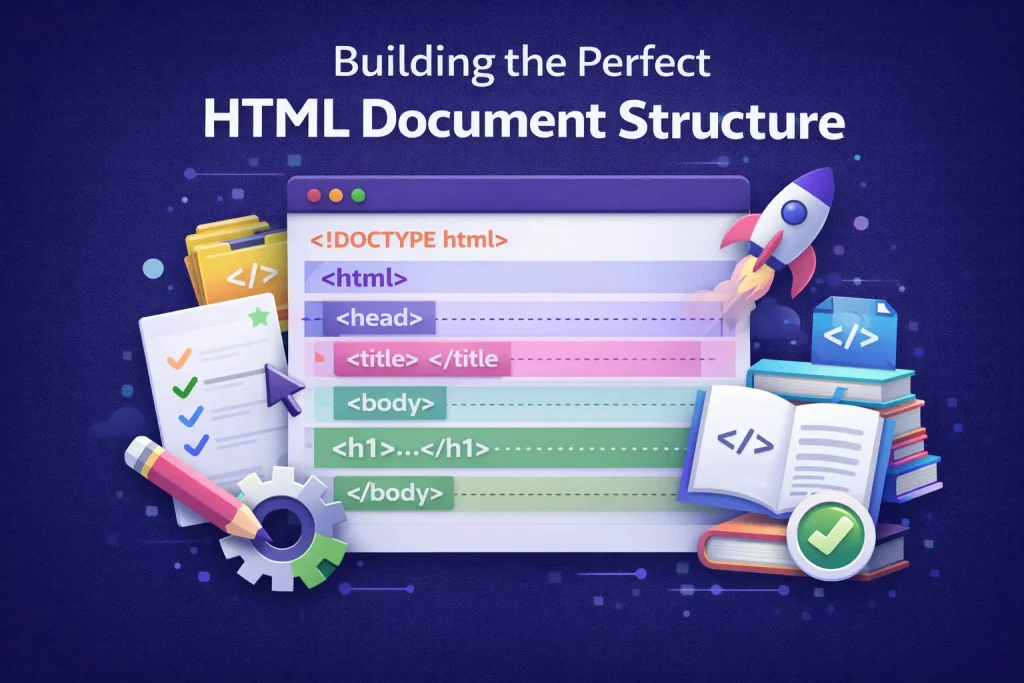
Building HTML Document Structure
Learn how to build a perfect HTML document structure from scratch. Understand <!DOCTYPE html>, the html tag, language attributes, and organizing head and body sections for every webpage.
01What Is an HTML Document Structure?
Every webpage you visit on the internet is built on one thing: “an HTML document”. And every HTML document follows a specific structure that tells the browser exactly how to read and display your content.
Think of the HTML document structure like the frame of a house. Before you add walls, windows, or paint, you need a solid frame. Without it, everything falls apart. The same is true for your webpage. Without a proper HTML document structure, your browser gets confused, your styles break, and your content looks like a mess.
In this tutorial, you’ll learn every single piece that makes up a perfect HTML5 document, from the very first line to the closing tag. By the end, you’ll have a rock-solid foundation you can reuse for every webpage you ever build.
Let’s get into it.
02The Full HTML5 Document: Before We Break It Down
Before explaining each part, here’s what a complete and correct HTML document structure looks like. Read it once, then we’ll go through every single line together.
<!DOCTYPE html>
<html lang="en">
<head>
<meta charset="UTF-8">
<meta name="viewport" content="width=device-width, initial-scale=1.0">
<meta name="description" content="A beginner-friendly tutorial on HTML document structure.">
<title>My First Perfect Webpage</title>
<link rel="stylesheet" href="style.css">
</head>
<body>
<header>
<h1>Welcome to My Webpage</h1>
</header>
<main>
<p>This is a perfectly structured HTML5 document.</p>
</main>
<footer>
<p>© 2025 My Website</p>
</footer>
</body>
</html>Clean. Organized. Correct. That’s what we’re building, and understanding today.
03The <!DOCTYPE html> Declaration: The Very First Line
The first thing in every HTML document is <!DOCTYPE html>. Not a tag. Not an element. A declaration.
It tells the browser one important thing: “This is an HTML5 document. Use HTML5 rules to read it.”
Without the <!DOCTYPE html> declaration, browsers fall into something called “quirks mode.” In quirks mode, browsers try to guess how to render your page based on old, broken rules from the 1990s. That means unexpected layouts, weird spacing, and bugs that are hard to track down.
<!DOCTYPE html>That one line. Always the very first line. Before anything else.
You might have seen older doctypes from HTML 4 or XHTML that looked like this:
<!DOCTYPE HTML PUBLIC "-//W3C//DTD HTML 4.01 Transitional//EN"
  "http://www.w3.org/TR/html4/loose.dtd">
Long. Complicated. Hard to remember. The HTML5 doctype replaced all of that with the simple <!DOCTYPE html>. That’s one of the best things HTML5 brought us.
💡 Quick Rule
<!DOCTYPE html> is not case-sensitive. You could write <!doctype html> and it would still work. But the conventional style you’ll see everywhere is all-caps DOCTYPE.
04The <html> Tag: The Root of Everything
Right after the <!DOCTYPE html> declaration, you write the <html> tag. This is the root element of your entire page. Every single thing in your HTML document like head, body, text, images, links, lives inside this tag.
<!DOCTYPE html>
<html>
  <!-- Everything goes here -->
</html>
The <html> tag opens at the top and closes with </html> at the very bottom. Nothing should exist outside of it (except the DOCTYPE).
The lang Attribute: Don’t Skip This
The <html> tag should always include a lang attribute. This is one of the most important language attributes in HTML, and beginners skip it all the time.
<html lang="en">The language attribute tells the browser, screen readers, search engines, and translation tools what language your page is written in. "en" means English. This one language attribute does three powerful things:
Accessibility
Screen readers use the language attribute to pronounce your content correctly for visually impaired users.
SEO
Search engines use the language attribute to serve your page to the right audience in the right region.
Translation
Browsers like Chrome offer auto-translate based on the language attribute declared in your HTML tag.
Here are some common language attributes you’ll come across:
You can also be more specific with language attributes. For example, lang="en-US" means American English, while lang="en-GB" means British English. For most projects, lang="en" is perfectly fine.
05The <head> Section: Your Page’s Brain
Now we get into one of the two main sections of every HTML document: the <head> section.
The <head> section is invisible. Users never see what’s inside it directly. But it controls everything important about your webpage like the title, character encoding, SEO information, linked stylesheets, and more.
Think of the <head> section as the brain of your HTML document. It doesn’t show on screen, but it makes smart decisions behind the scenes.
<!DOCTYPE html>
<html lang="en">
  <head>
    <meta charset="UTF-8">
    <meta name="viewport" content="width=device-width, initial-scale=1.0">
    <title>Page Title Goes Here</title>
  </head>
</html>
The <meta charset> Tag
The first tag inside the <head> section should always be:
<meta charset="UTF-8">UTF-8 is a character encoding that supports almost every character from every language on earth. Without it, special characters like é, ñ, ü, 中, or even quotation marks can appear broken or as strange symbols.
Always include it. Always make it the first tag in your <head> section.
The Viewport Meta Tag
This one is critical for making your webpage work properly on mobile phones and tablets:
<meta name="viewport" content="width=device-width, initial-scale=1.0">Without this tag, your beautifully designed webpage will look tiny and zoomed-out on a phone. The viewport meta tag tells the browser to match the screen width and start at a normal zoom level.
❌ Without Viewport Meta
Your webpage appears zoomed out on mobile. Text is tiny. Users have to pinch to zoom in just to read anything.
✅ With Viewport Meta
Your webpage fits perfectly on any screen. Responsive. Readable. Works exactly like your users expect.
The <title> Tag
The <title> tag sets the name of your webpage. It shows in three places: the browser tab, search engine results, and bookmarks.
<title>Learn HTML Document Structure | DevDocs</title>A good title is clear, short (under 60 characters), and includes your main keyword. It’s one of the most important SEO elements in your entire HTML document structure.
The Description Meta Tag
This doesn’t affect how your page looks, but search engines use it as the text shown under your link in search results:
<meta name="description" content="Learn how to build a perfect HTML document structure with this beginner-friendly guide.">Keep it between 150–160 characters. Make it clear and human-readable.
Linking a CSS Stylesheet
When your webpage has a separate CSS file, you link it inside the <head> section using the <link> tag:
<link rel="stylesheet" href="style.css">Putting your stylesheet link in the <head> section ensures your styles load before the browser renders the page. This prevents that ugly flash where you see unstyled content for a second.
A Complete <head> Section
Here’s what a well-built <head> section looks like with everything in place:
<head>
  <meta charset="UTF-8">
  <meta name="viewport" content="width=device-width, initial-scale=1.0">
  <meta name="description" content="A beginner-friendly guide to HTML document structure.">
  <title>HTML Document Structure Guide</title>
  <link rel="stylesheet" href="style.css">
</head>06The <body> Section: Where Your Content Lives
Everything users actually see on your webpage goes inside the <body> section. Text, images, buttons, navigation, forms, videos, all of it lives here.
The <body> section comes directly after the closing </head> tag:
<!DOCTYPE html>
<html lang="en">
  <head>
    <meta charset="UTF-8">
    <meta name="viewport" content="width=device-width, initial-scale=1.0">
    <title>My Webpage</title>
  </head>
  <body>
    <h1>Hello, World!</h1>
    <p>This is my first properly structured webpage.</p>
  </body>
</html>
The <body> section is the visible half of your HTML document. The <head> section gives instructions to the browser , and the <body> section delivers the actual content to the user.
Organizing Your <body> Section with Semantic Tags
A smart HTML document structure doesn’t just dump everything into the <body> section randomly. You use semantic tags to organize content into meaningful sections.
Here’s what a well-organized <body> section looks like:
<body>
<header>
<nav>
<a href="/">Home</a>
<a href="/about">About</a>
<a href="/contact">Contact</a>
</nav>
</header>
<main>
<article>
<h1>Understanding HTML Document Structure</h1>
<p>Every webpage needs a solid foundation...</p>
</article>
</main>
<footer>
<p>© 2025 My Website</p>
</footer>
</body>Each section has a clear purpose. The browser understands it. Search engines understand it. Screen readers understand it. That’s the power of combining a proper HTML5 document structure with semantic HTML.
07Visual Breakdown: The Anatomy of an HTML5 Document
Here’s a visual diagram showing exactly how every part of an HTML document structure fits together:
→ Tells the browser: “Use HTML5 rules”
→ Root element + language attribute
→ Invisible. Instructions for the browser.
→ Visible. Everything users see.
Look at how everything nests perfectly. The <html> tag wraps everything. Inside it, the <head> and <body> sections sit side by side. That nesting is the DNA of every HTML document structure.
08Where Does JavaScript Go in the HTML Document?
A question beginners ask a lot: where do I put my <script> tags?
The old way was to put them in the <head> section. But that caused a problem, the browser would stop reading your HTML and wait for the JavaScript to load before continuing. This slowed down the page.
The right way in modern HTML5 document practice is to place your <script> tags right before the closing </body> tag:
<body>

  <h1>My Page</h1>
  <p>Content loads fast because scripts are at the bottom.</p>

  <!-- Scripts go here, just before </body> -->
  <script src="app.js"></script>

</body>
This way, all your HTML content loads and displays first. Then JavaScript loads after. Your users see the page faster.
Alternatively, you can keep your script in the <head> section but use the defer attribute, which tells the browser to load the script after the HTML is done parsing:
<head>
  <script src="app.js" defer></script>
</head>
Both approaches work well. The important thing is that you’re thinking about performance as part of your HTML document structure.
09Common Mistakes That Break Your HTML Document Structure
Let’s look at the mistakes that beginners make most often. Knowing these will save you hours of debugging.
Mistake 1: Forgetting <!DOCTYPE html>
The most common one. Without the <!DOCTYPE html> declaration, your page enters quirks mode and behaves unexpectedly. Always put it on line one.
❌ Wrong
<html lang="en">
  <head>...</head>
  <body>...</body>
</html>
✅ Correct
<!DOCTYPE html>
<html lang="en">
  <head>...</head>
  <body>...</body>
</html>
Mistake 2: Skipping the Language Attribute on the <html> Tag
The language attribute isn’t optional if you care about accessibility or SEO. The <html> tag without a language attribute is like a book without a language label. nobody knows what to do with it.
❌ Missing language attribute
<html>
✅ With language attribute
<html lang="en">
Mistake 3: Putting Content Outside <body>
Everything the user sees must live inside the <body> section. Putting headings, paragraphs, or images outside of it might still work in some browsers (they’re forgiving), but it’s invalid HTML and can cause weird rendering bugs.
Mistake 4: Multiple <h1> Tags
There should be only one <h1> per page. It’s your main heading. It tells search engines what your webpage is about. Using multiple <h1> tags weakens your SEO and confuses your HTML document structure.
Mistake 5: Forgetting to Close Tags
Every opening tag needs a closing tag (with a few exceptions like <meta> and <link>). Forgetting to close your <body> or <html> tag can break layouts in unpredictable ways.
10The Perfect HTML5 Document
Now let’s put every concept together. This is the cleanest, most complete HTML document structure you can use as a starter template for any webpage.
<!DOCTYPE html>
<html lang="en">
<head>
<!-- Character encoding — always first -->
<meta charset="UTF-8">
<!-- Responsive design for all screen sizes -->
<meta name="viewport" content="width=device-width, initial-scale=1.0">
<!-- SEO description -->
<meta name="description" content="A clean starter template for any webpage with perfect HTML document structure.">
<!-- Page title — shows in browser tab and search results -->
<title>My Perfect Webpage</title>
<!-- Stylesheet link -->
<link rel="stylesheet" href="style.css">
</head>
<body>
<!-- Site header with navigation -->
<header>
<nav>
<a href="/">Home</a>
<a href="/about">About</a>
<a href="/contact">Contact</a>
</nav>
</header>
<!-- Main content of the page -->
<main>
<article>
<h1>Welcome to My Perfectly Structured Webpage</h1>
<p>
Every element here has a purpose. This HTML5 document is clean,
accessible, SEO-friendly, and ready for styling and JavaScript.
</p>
<section>
<h2>Why Structure Matters</h2>
<p>A solid HTML document structure makes your code maintainable,
your page fast, and your content understandable by browsers,
search engines, and assistive technologies.</p>
</section>
</article>
</main>
<!-- Footer -->
<footer>
<p>© 2025 My Website. All rights reserved.</p>
</footer>
<!-- JavaScript at the bottom for performance -->
<script src="app.js"></script>
</body>
</html>Save this. Bookmark it. Use it as your starting point for every single webpage you build from now on.
11Why This Foundation Makes Everything Easier
You might be thinking “This seems like a lot of setup for something so basic.” But here’s the truth: getting the HTML document structure right from the start means everything that comes after it is easier.
Your CSS works predictably because it has a solid HTML5 document to hook into. Your JavaScript runs faster because scripts are placed correctly. Your SEO starts strong because the title, description, language attribute, and semantic structure are all in place. Your page is accessible because you included the right meta tags and language attributes on the <html> tag.
Every professional developer uses this exact same foundation. Now you do too.
12Quick Reference: HTML5 Document Structure Cheat Sheet
13You Now Have a Solid Foundation
The HTML document structure isn’t just technical boilerplate you copy and paste without thinking. Every single piece of it has a reason, a purpose, and an impact on your webpage.
The <!DOCTYPE html> declaration makes sure your browser uses the right rules. The language attribute on the <html> tag helps accessibility and search engines. The <head> section gives your page its identity, its character set, and its responsiveness. The <body> section delivers everything your users actually read, click, and interact with.
Together, they form a foundation that holds everything you build on top of it like CSS, JavaScript, frameworks, dynamic content, all of it depends on a correct, complete HTML5 document structure underneath.
Start every project with this structure. Get it right from line one. The rest of web development becomes a whole lot smoother when the base is solid.
Building HTML Document Structure
Loading challenge…
Ready to Practice?
Select a difficulty level above to load your challenge.